
Clean a supplier list: remove duplicate lines and sort A–Z
Several colleagues sent supplier names, and the combined list contains repeats. If one entry belongs on each line, the Workbench can remove exact duplicates and sort the remaining lines without copying the list into a spreadsheet.

When this helps
Use it for plain-text lists of filenames, labels, domains or supplier names when a whole line is the unit you want to compare. This is not a tool for deciding whether two differently written names refer to the same company.
Prepare your files
Prepare a UTF-8 TXT file with one item per line. The sample has five entries: Atlas Packaging and Cedar Supplies each appear twice, while Beacon Components appears once.
Follow the steps
- Select the TXT file in the Workbench. Keep a copy of the original list for comparison.
- Choose Workflow mode and the Quick template “TXT: dedupe lines, then sort A→Z”, or import the supplied recipe.
- Review both steps. The example uses case-sensitive duplicate matching and ascending, case-sensitive sorting.
- Run the workflow and download the cleaned TXT file.
- Open it in a text editor and compare the results with the original. Save the workflow if you will repeat the task next week.
See the full workflow and parameters
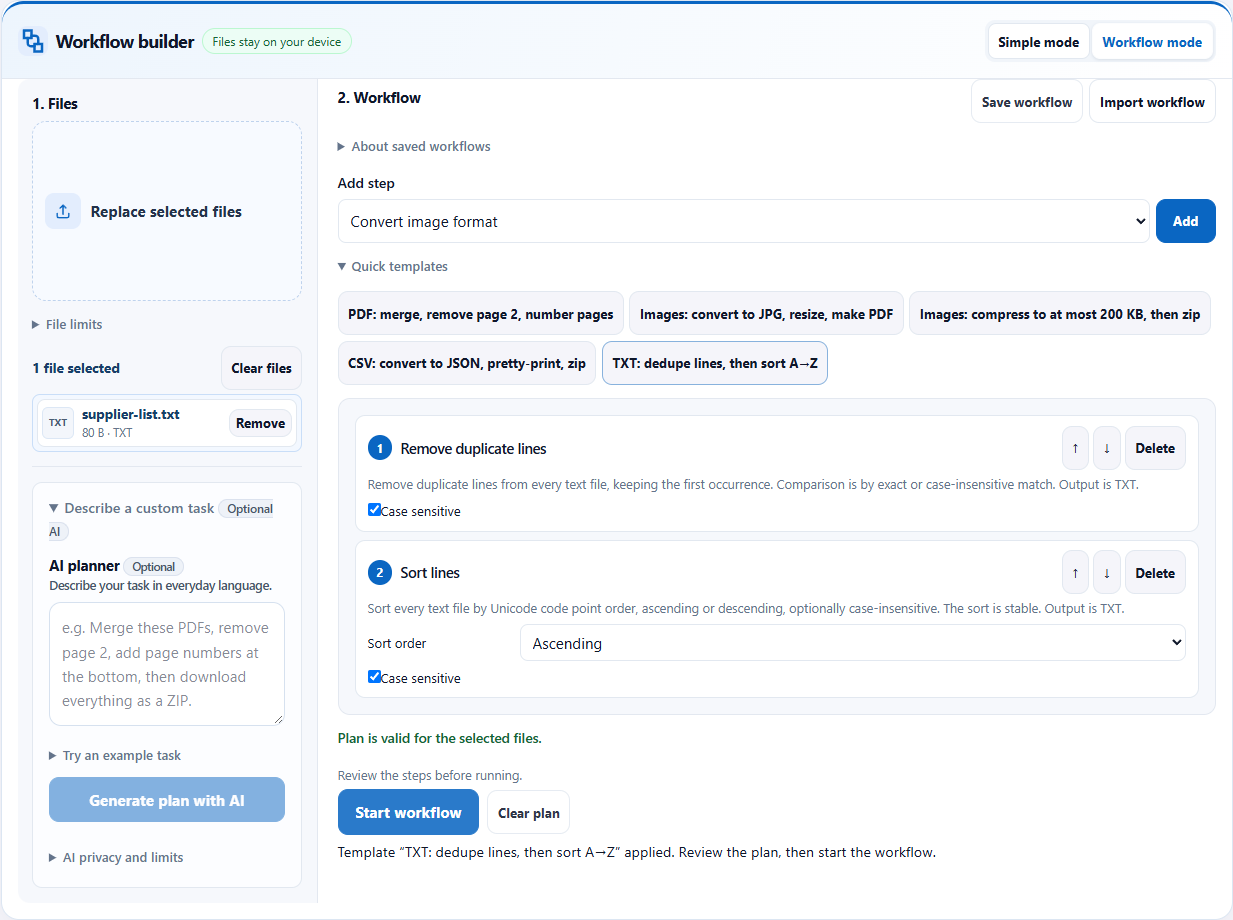
Check before handing off
- The five-line sample should become three lines: Atlas Packaging, Beacon Components and Cedar Supplies, in that order.
- Check that apparently repeated entries are actually identical. Extra spaces, capital letters and spelling differences can need separate cleanup.
- Confirm that a line represents an entire item. Do not split a multi-line address or record into independent lines.
What the example produced
The sample output was checked against the exact three-line expected text. Duplicate removal and sorting ran without an AI request.
Download the verified example result →
Things to watch
- Case-sensitive matching treats “Atlas” and “atlas” as different values. This workflow does not normalize aliases or merge similar names.
- Sorting is not a business ranking, a numeric sort or a guarantee of locale-specific alphabetical order. Review mixed-language or numbered lists.
- If your source is a table with several columns, use a suitable table-cleaning process instead. Deduplicating complete lines is different from comparing a customer ID column.
Try it with the sample
Download the sample files, select them in the Workbench, switch to Workflow mode and import the workflow JSON. Review the steps before starting.
Download sample files
Or describe the task
Remove exact duplicate lines from each TXT file, keep case-sensitive matching, then sort the remaining lines in ascending order.Templates and imported workflows do not need AI. AI planning sends your instruction and file aliases, formats, sizes and inspection metadata to the server; file contents, real filenames and paths stay on your device. Review generated steps and leave sensitive information out of the instruction.
Related tools
Screenshots and results come from actual Workbench runs on October 12, 2026, using fictional sample data. They demonstrate these examples; check your own outputs before handing them off.