
Merge a proposal and appendix into a numbered PDF package
A proposal arrives as one PDF and the supporting material as another. Sending both means asking the recipient to keep the order straight. Merge them into one document and add continuous page numbers so a reviewer can refer to a specific page.
When this helps
Use this for proposal packets, project documentation and other ordinary PDF handoffs. Keep signed originals separately: editing a digitally signed PDF can invalidate its signature.
Prepare your files
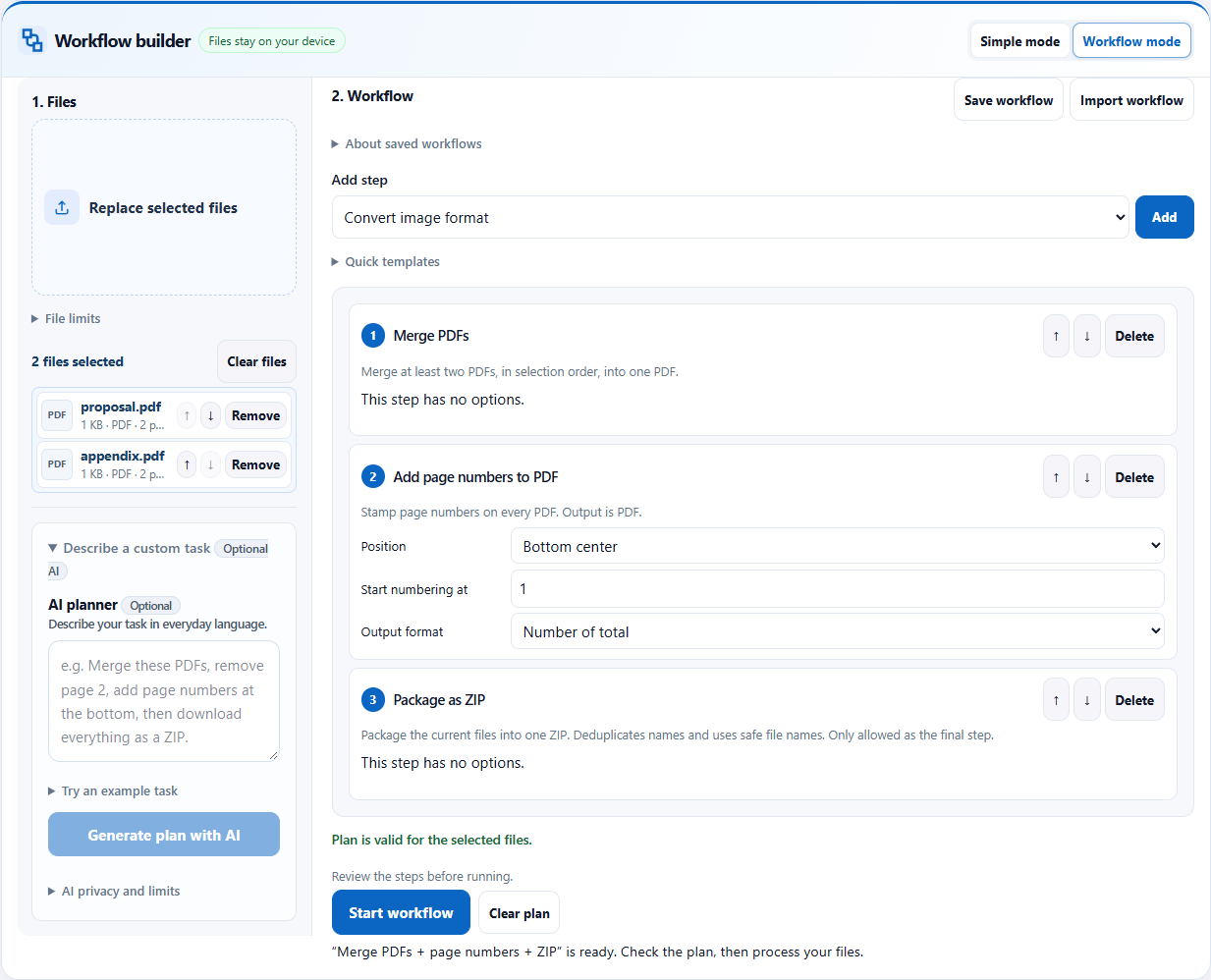
The example has a two-page proposal and a two-page appendix. Put the proposal first and the appendix second in the file list. Make sure every file belongs in the same deliverable.
Follow the steps
- Open the Workbench and choose both PDFs in one selection. Check their order in the list before applying the task.
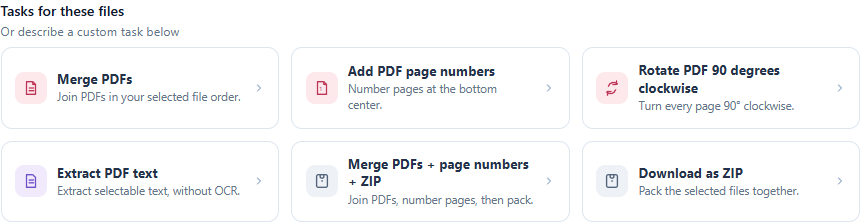
- In Simple mode, choose the common task for merging PDFs, adding page numbers and making a ZIP. You can also import the workflow JSON supplied below in Workflow mode.
- Switch to Workflow mode if you want to inspect the parameters. The plan merges the files, adds bottom-center numbers in “page of total” format, then packages the PDF.
- Start the workflow. Download and extract the ZIP after completion.
- Open the merged PDF and review the boundary between the proposal and appendix, as well as the page numbers at the bottom.
See the full workflow and parameters
Check before handing off
- The example should contain four pages: proposal pages first, appendix pages second.
- Check that numbering is continuous and does not overlap an existing footer or important content.
- Compare the first and last page of each source with the combined PDF. Page count alone does not prove the order is correct.
What the example produced
Two two-page example PDFs produced one ZIP containing a four-page PDF. The output page count was checked; inspect the visible numbering and order before using your own deliverable.
Download the verified example result →
Things to watch
- This task does not remove any page. The separate “PDF: merge, remove page 2, number pages” template does remove page 2; do not select it accidentally for a complete packet.
- Merging and numbering do not redact sensitive content. Remove confidential material with a tool designed for redaction before sharing.
- Password-protected, damaged or unusual PDFs may fail. Do not assume annotations, forms or digital signatures remain valid after rewriting.
Try it with the sample
Download the sample files, select them in the Workbench, switch to Workflow mode and import the workflow JSON. Review the steps before starting.
Download sample files
Or describe the task
Merge these PDFs in the selected order, add page numbers at the bottom center starting from 1 in page-of-total format, then put the PDF into a ZIP.Templates and imported workflows do not need AI. AI planning sends your instruction and file aliases, formats, sizes and inspection metadata to the server; file contents, real filenames and paths stay on your device. Review generated steps and leave sensitive information out of the instruction.
Related tools
Screenshots and results come from actual Workbench runs on October 12, 2026, using fictional sample data. They demonstrate these examples; check your own outputs before handing them off.