
Batch compress images under 200 KB and download a ZIP
A supplier portal accepts your pictures, but rejects anything above 200 KB. Opening, exporting and checking each image separately turns a small submission into a repetitive job. The Workbench can apply the same size target to a batch and package the results.
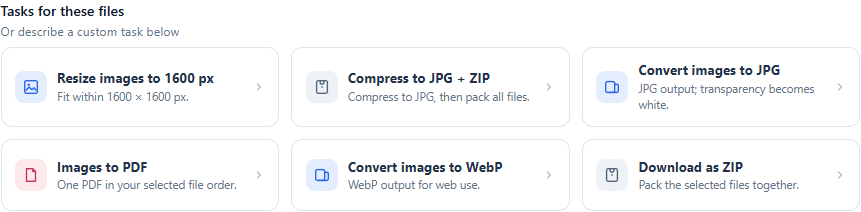
When this helps
Use this workflow for evidence attachments, product submission forms or an internal system with a per-image file limit. A ZIP is a convenient handoff to a colleague; a form that requires individual pictures usually needs you to extract the ZIP first.
Prepare your files
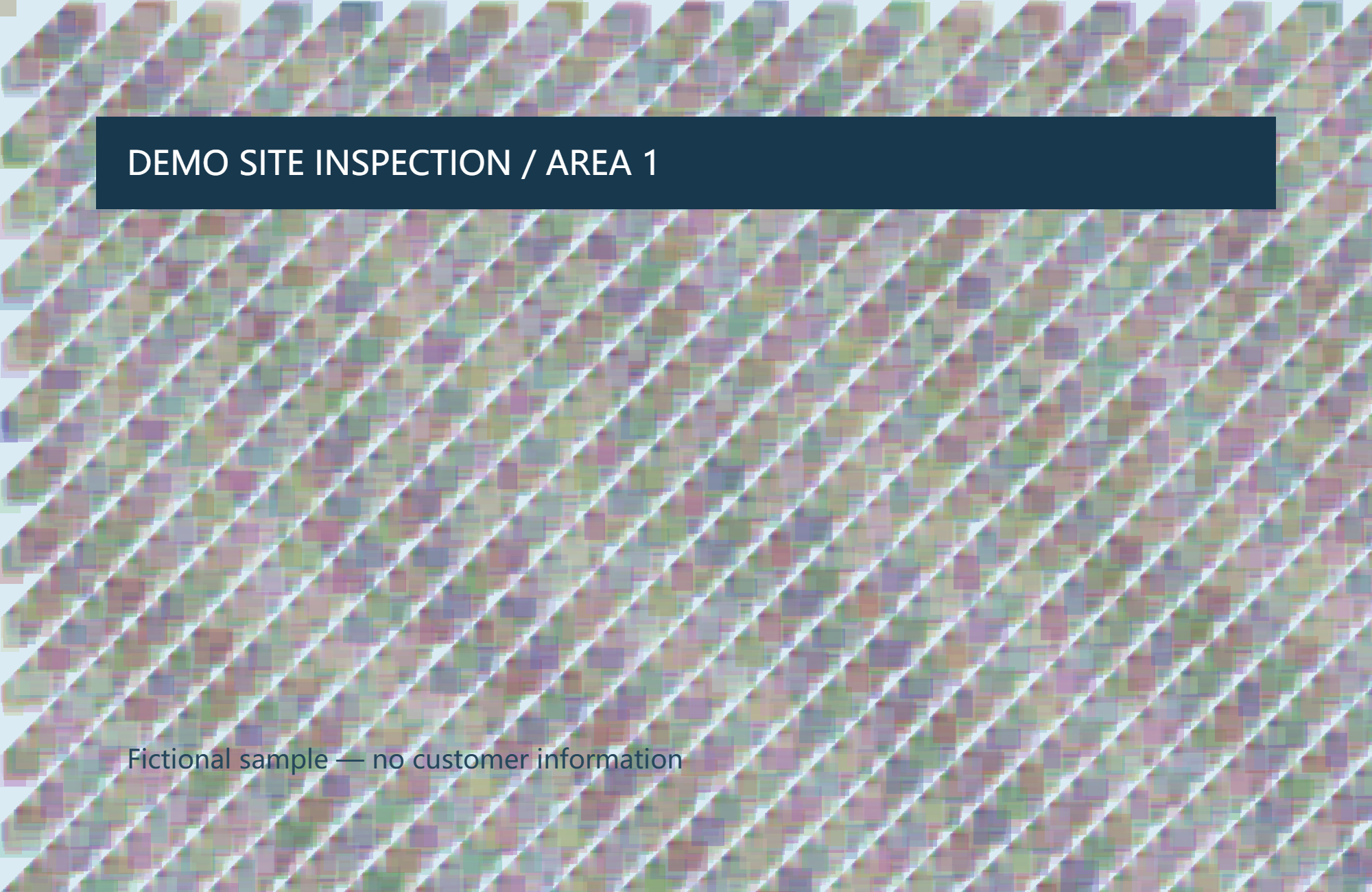
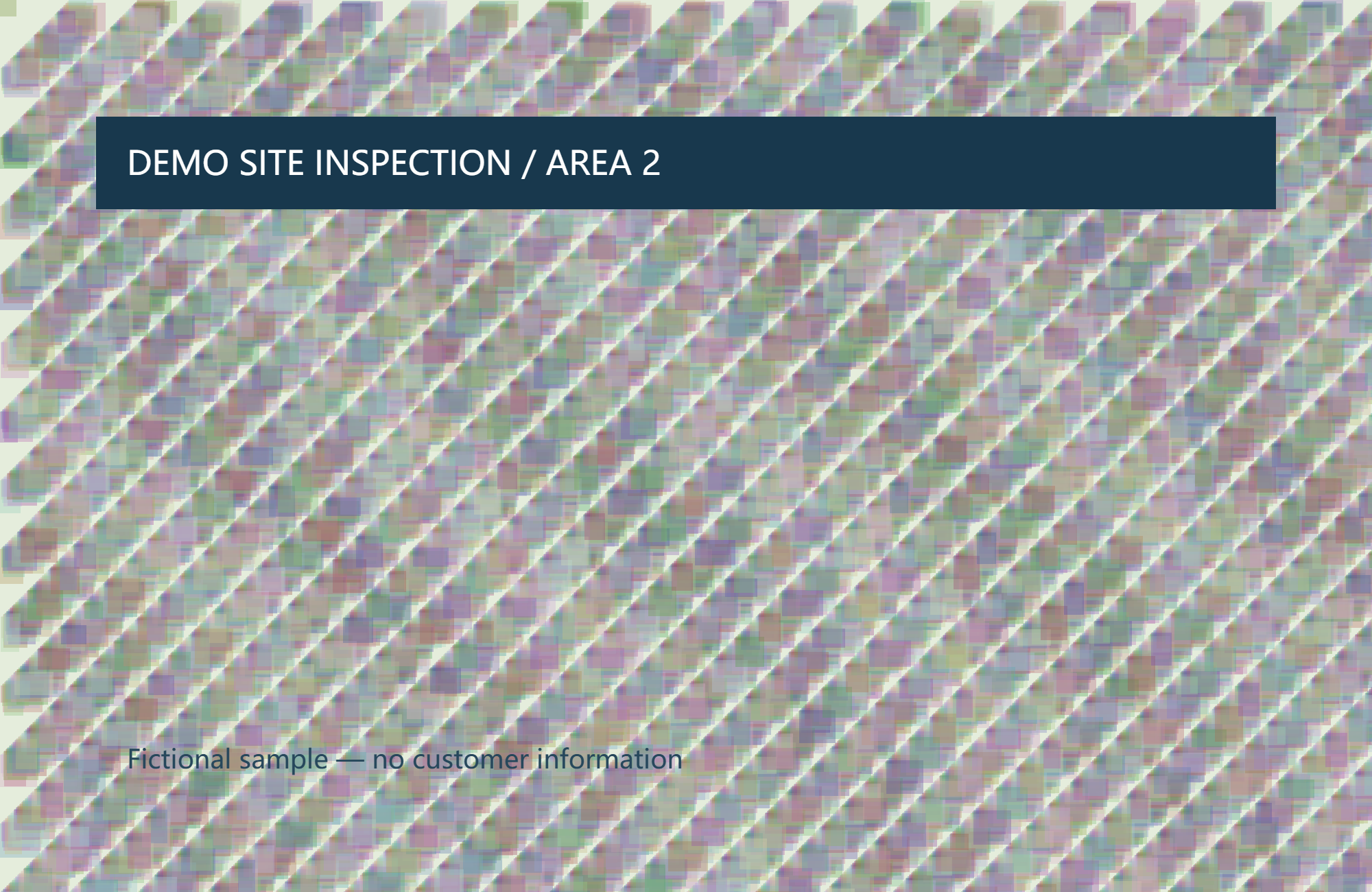
Start with JPG, PNG or WebP images. The downloadable example contains three fictional inspection graphics. Keep the originals, particularly when a photo needs to retain fine print or serve as a high-quality record.
Follow the steps
- Open the Workbench and choose all the images in one selection. Choosing again replaces the current list; it does not append files.
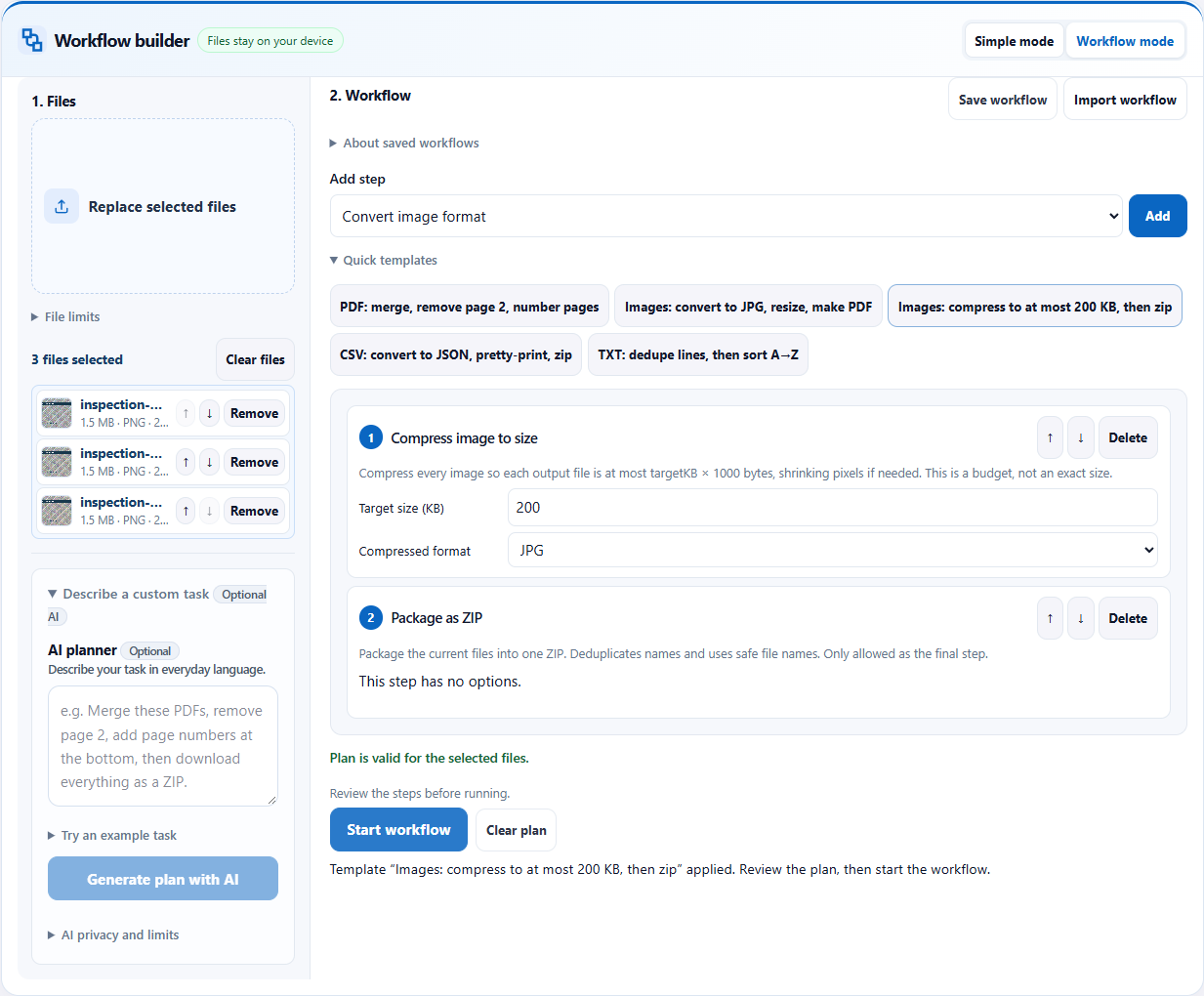
- Choose Workflow mode, expand Quick templates, and select “Images: compress to at most 200 KB, then zip”. Alternatively, import the workflow JSON below.
- Review the first step: JPG output and a 200 KB target. Change the target to match your portal before running. Review the ZIP step after it.
- Choose Start workflow. Wait for Workflow complete, download the ZIP, then extract it into a new folder.
- Check the extracted pictures and submit those files. Keep the ZIP if you need to send the whole batch to someone else.
See the full workflow and parameters
Check before handing off
- Check the size of each extracted JPG rather than the ZIP itself. Here, 200 KB means 200,000 bytes.
- Open a few outputs at normal viewing size and zoom in on labels, signatures or other details that matter.
- Confirm the number of extracted pictures matches the inputs. A small file that has lost necessary information is not an acceptable result.
What the example produced
The example run produced one ZIP with three JPG images. Each extracted JPG passed the 200,000-byte check. No AI planning request was needed.
Download the verified example result →
Things to watch
- JPG cannot preserve transparency; transparent areas become white. Use a different format if the background must remain transparent.
- Meeting a tight size target can reduce dimensions or quality. Start with a higher limit when the receiving system permits it.
- The template does not promise an exact byte count, and the final ZIP is not constrained to 200 KB. If processing fails, inspect the error before submitting any partial result.
Try it with the sample
Download the sample files, select them in the Workbench, switch to Workflow mode and import the workflow JSON. Review the steps before starting.
Download sample files
Or describe the task
Compress every image to JPG at no more than 200 KB, then package the outputs into a ZIP.Templates and imported workflows do not need AI. AI planning sends your instruction and file aliases, formats, sizes and inspection metadata to the server; file contents, real filenames and paths stay on your device. Review generated steps and leave sensitive information out of the instruction.
Related tools
Screenshots and results come from actual Workbench runs on October 12, 2026, using fictional sample data. They demonstrate these examples; check your own outputs before handing them off.